

 d-tags


 Loading...
In this guide, I will show you several proven and tested methods for adding Google Analytics 4 to your WordPress-powered website.
The new version of Google Analytics (GA4) has its strong and weak points. The longer we use this tool, the more of them we discover. However, one thing remains unchanged – Google Analytics is still the most powerful and most popular tool for measuring and analyzing traffic on your website.
The same can be said about WordPress, which continues to be the most popular content management system (CMS) available. Naturally, integrating these two tools is now a common practice.
Why should you add GA4 to WordPress?
Adding GA4 to your WordPress website benefits the quality of your traffic analysis and helps you better optimize your marketing efforts.
On its own, WordPress provides very limited insights into user behavior. This is one of the reasons why tools like Google Analytics are so popular. GA4 gives you access to valuable data, such as the volume, sources and quality of traffic that your site receives. With GA4, you can track how many users filled out a contact form or, in the case of e-commerce websites, how many users made a purchase.
Another key benefit is that Google Analytics integrates seamlessly with other Google services, such as Google Ads and Google Search Console. This integration allows you to analyze data from multiple sources and make more informed business decisions. For example, data from your Google Ads campaign automatically synchronizes with Google Analytics, enabling you to track your return on investment (ROI) and use real data to better optimize your campaigns.
How to add GA4 to WordPress – a step by step guide
Your very first step should be setting up your Google Analytics account. If you already have one, you only need to create a new property:
- Log in to your Google Analytics account.
- Click on “Admin” in the lower-left corner.
- Under the “Account” section, select an existing account or create a new one.
- In the “Property” section, click “Create Property” and choose Google Analytics 4.
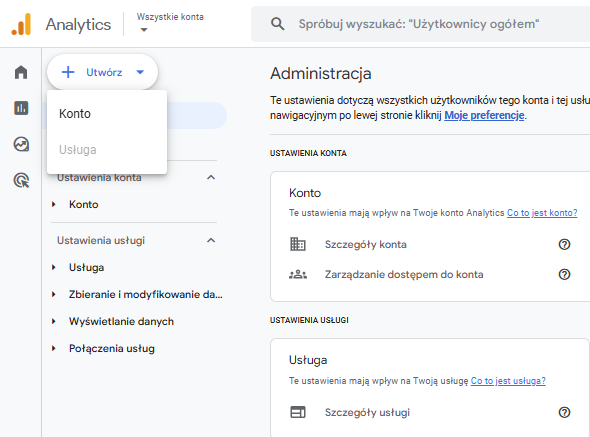
5. Follow the setup instructions to generate your tracking ID.

Once your GA4 account and new property are set up, you can proceed with one of the following installation methods.
Method #1: Adding GA4 using a dedicated WordPress plugin
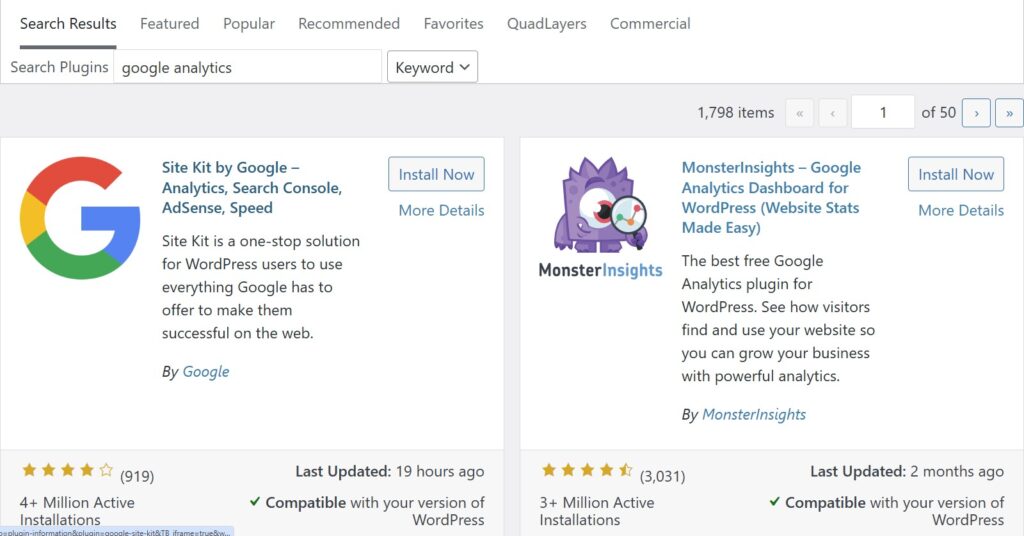
The easiest way to install Google Analytics 4 on WordPress is by using one of the dedicated plugins, such as “MonsterInsights”,“Site Kit by Google”, or “GA Google Analytics”. Here’ how to install GA4 using a plugin:
- Log in to your WordPress Admin Panel.
- Navigate to Plugins > Add New.
- Search for the plugin “MonsterInsights” (or another preferred plugin).
- Install and activate the plugin.
- Go to the plugin settings in your WordPress dashboard.
- Click “Connect to Google Analytics” and log in with your Google account.
- Select the GA4 property you created earlier.
- Once connected, the plugin will automatically start tracking your website’s traffic.
Using dedicated plugins is the easiest way to add GA4 to WordPress; however, it comes with certain limitations. The simplicity of these plugins is a double-edged sword, as they offer very few customization options. This can become problematic as soon as you encounter any unexpected issues with editing or measuring your traffic data.
Method #2: Manually adding GA4 tracking code to WordPress files
There is no rule that says you have to use plugins. A good alternative is to access your WordPress theme’s files and add your GA4 tracking code there:
- Copy the tracking code from your GA4 account.
- In your WordPress Admin Panel, go to Appearance > Theme Editor.
- Open the header.php file.
- Paste the GA4 tracking code just before the closing </head> tag.
- Save the changes.
Please be aware that adding your GA4 code manually comes with a trade-off, as it increases the complexity of configuring event tracking.
With plugins, these events are often tracked automatically, whereas a manual setup requires additional configuration within GA4. When using a manually added tracking code, every event must be set up and confirmed manually.
Method #3: Adding GA4 tracking code using Google Tag Manager (GTM)
If you’re using GTM on your website, then you can use it to easily integrate GA4 with WordPress. The GTM itself lets you manage your tags without editing your website’s code. To use it for adding GA4 to your WordPress website you need to follow these 6 steps:
- Create an account on Google Tag Manager.
- Add a new container for your website.
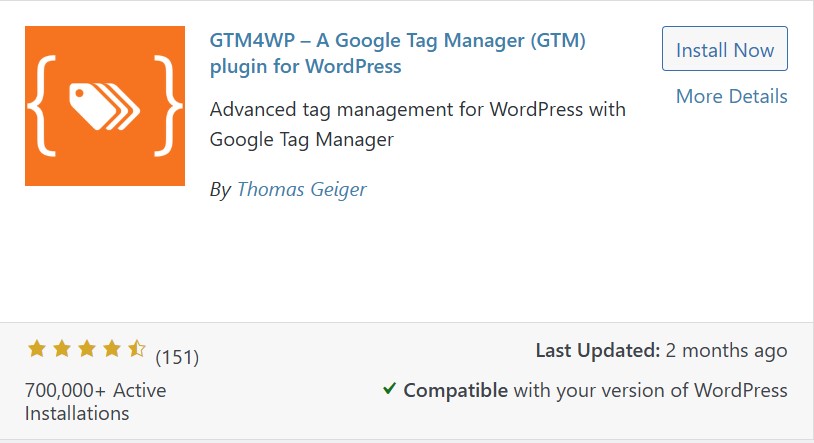
- Copy the GTM container code and paste it into the header.php file of your WordPress theme. Alternatively, use a plugin like GTM4WP (recommended).
4. In GTM, create a new tag and select the “Google Tag” type.
5. Copy your GA4 tracking ID and paste it into the appropriate field.
6. Publish your changes in Google Tag Manager. From now on, you’ll be able to track your traffic in GA4.
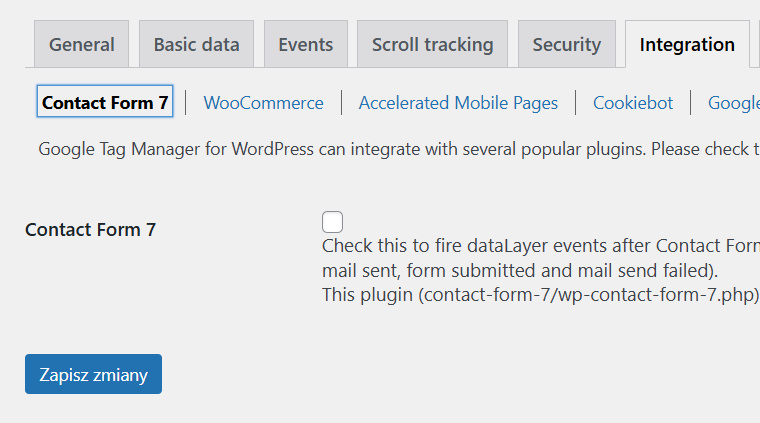
This method allows you to automatically track form submissions (created with Contact Form 7) and purchases (via separate tags in GTM) in GA4 with just a few clicks within WordPress. The relevant options can be enabled in the plugin settings under the “Integrations” section.
Final thoughts on adding GA4 to WordPress
Adding Google Analytics 4 to WordPress is a big step toward better analysis of your website’s traffic. GA4 gives you a selection of advanced analytical tools that will help you better understand your users. There are many methods to add GA4 to WordPress – from dedicated plugins, Google Tag Manager to manual implementation of the tracking code. Choosing the right one comes down to your own preferences and skill level.


