Learn how to grant and revoke access to Google tools such as Google Ads, Google Merchant Center, Google Analytics 4 and Google Tag Manager. Practical step-by-step guidance to effectively manage permissions in Google Marketing Platform.
Google Ads, Google Analytics 4, Google Tag Manager, and Google Merchant Center are tools for managing online advertising activities. However, to use them effectively and securely—especially when collaborating with marketing agencies, freelancers, or other team members—it is extremely important to manage access precisely. In this article, we will explain the access levels in each tool, how to grant or revoke access, and what to pay attention to in order to maintain account security.
Google Ads
Account Access Levels in Google Ads
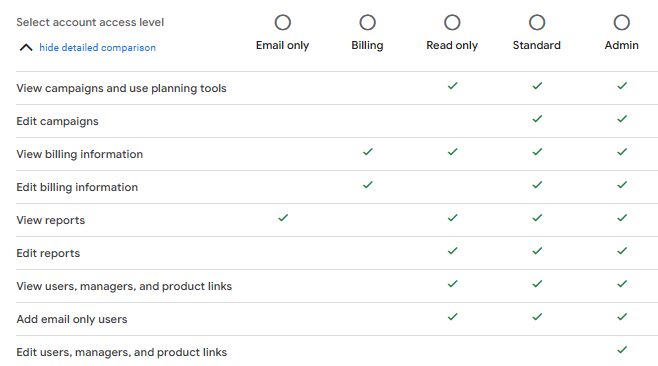
In Google Ads, there are five access levels, with Admin having the most capabilities and Email only having the least.
Source: Google Ads panel
Granting Access to an Individual User in Google Ads
Granting such access is a quick and straightforward process:
Sign in to your Google Ads account.
Navigate to the Tools and Settings menu, then Access and Security under the Setup section.
Click the blue plus icon (+).
Source: Google Ads panel
Enter the email address of the person you want to grant access to.
Choose the expiration time for the access (it is best to set it to “No Expiration” initially, as you can revoke access at any time).
Select the appropriate access level.
Click Send Invitation.
The invited person will receive an email with a link, and upon clicking it, they will be able to accept the invitation.
IMPORTANT! During the process of adding a user, you may see the following notification:
The domain of this email address is not on the list of allowed domains. To make changes to this list, update the security settings.
If this occurs, go to the Security Settings tab and add an allowed domain. For example, if you set “xyz.com” as an allowed email domain, you will be able to invite users with email addresses in the format [email protected].
Revoking Access for an Individual User in Google Ads
If you want to restrict access for a user (e.g., after finishing collaboration with an agency), you can easily remove it:
Sign in to the selected Google Ads account.
Navigate to Tools and Settings > Access and Security.
Find the email of the person you want to revoke access for in the table and click Remove Access in the Actions column.
Confirm the removal.
The user will lose access to the account immediately after removal.
Granting Access to a Google Ads Manager Account
A Google Ads Manager Account is a tool designed for advertising agencies, freelancers, and teams managing multiple ad accounts. Instead of granting access to each person individually, you can link your Google Ads account to a manager account (e.g., an agency managing your advertising campaigns). To do this:
Provide the agency/freelancer with your account ID so they can link your account to their MCC (My Client Center).
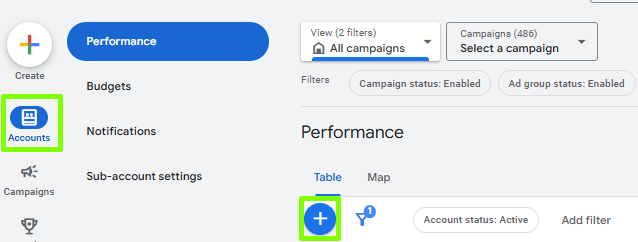
The agency/freelancer needs to navigate to Accounts and click the plus icon (+).
Source: Google Ads panel
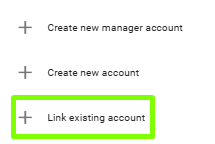
Link Existing Accounts
Source: Google Ads panel
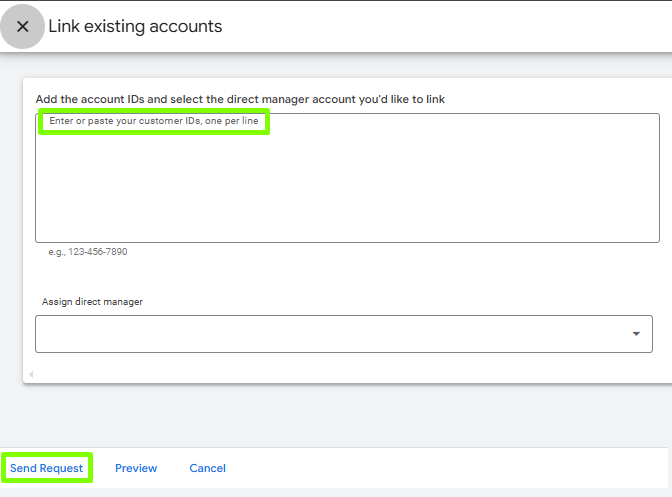
Enter the account ID > Send Request.
Source: Google Ads panel
After the agency sends the invitation, you must approve the request.
Revoking Access for a Manager Account in Google Ads
In the case of ending collaboration, consider revoking access to your account for the agency. For example:
Sign in to your Google Ads account.
Navigate to Tools and Settings > Access and Security > Managers.
In the Actions column, click Remove Access.
At this point, the specific manager account will no longer have access to your Google Ads account.
Google Merchant Center
Account Access Levels in Google Merchant Center
In Google Merchant Center, there are three main sections related to access:
Users (account access – Admin, Standard, and Viewer).
Email-Only Notifications.
Price Comparison Service Access (this option appears only if you have a dedicated CSS comparison tool).
Granting Access to a Google Merchant Center Account
Sign in to your Google Merchant Center account.
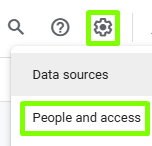
Navigate to Settings (gear icon) > Account Access.
Source: Google Merchant Center panel
Click the Add person button in the appropriate section.
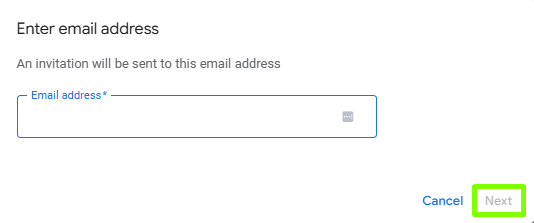
Enter the email address to which you want to grant access and click Next.
Source: Google Merchant Center panel
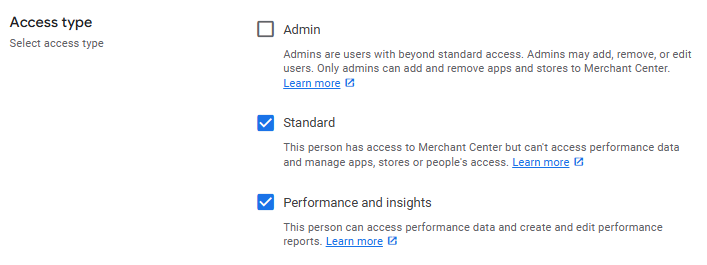
Choose the access level, then click Add user.
Source: Google Merchant Center panel
After selecting the type, click Add user in the bottom-right corner.
The user who has been granted access will receive an invitation to the provided email address. After accepting it, they will be able to log into the account. The invitation expires 14 days after access is granted.
Revoking Access to a Google Merchant Center Account
If you want to remove access to the Google Merchant Center account, the process is very simple:
Sign in to your Google Merchant Center account.
Navigate to Settings (gear icon) > Account Access.
Source: Google Merchant Center panel
In the user list, find the person whose access you want to revoke.
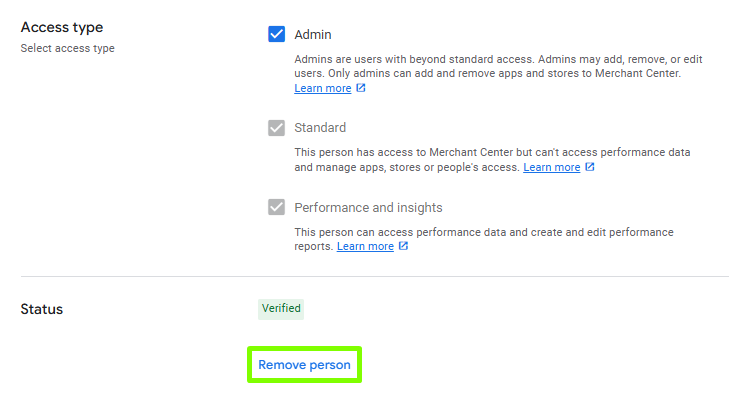
Click Manage next to their email address.
Click Remove person.
Source: Google Merchant Center panel
Removing a user immediately revokes their access to the account.
Google Analytics 4
Account Access Levels in Google Analytics 4
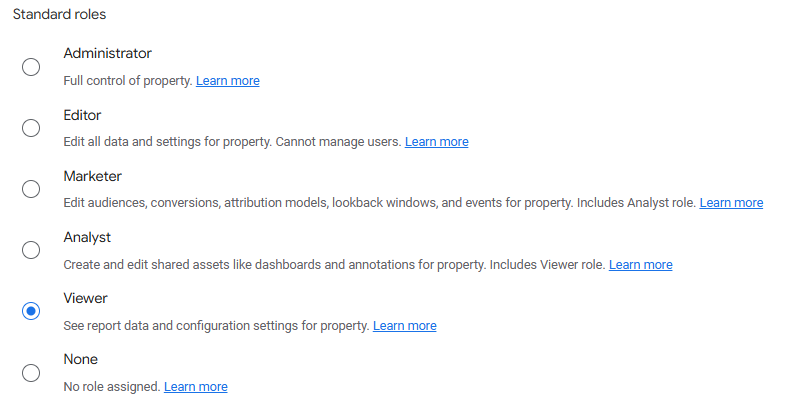
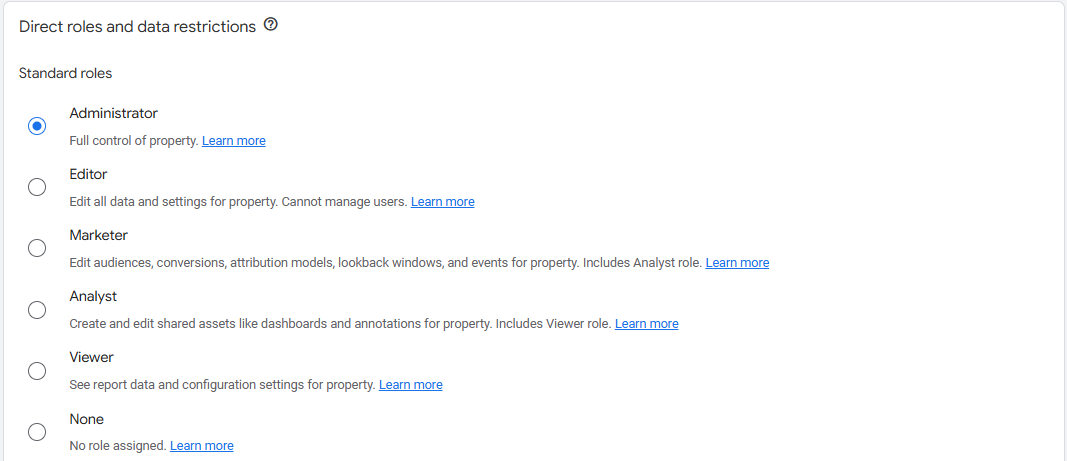
Google Analytics 4 allows you to assign different access levels, which control the actions users can take. The panel allows you to add access either to the entire account or to specific properties. Here are the main types of permissions:
Source: Google Analytics 4 panel
Granting Access to a Google Analytics 4 Account
Granting access in GA4 is quick and intuitive, provided you have administrator rights. Here are the steps:
Sign in to Google Analytics 4.
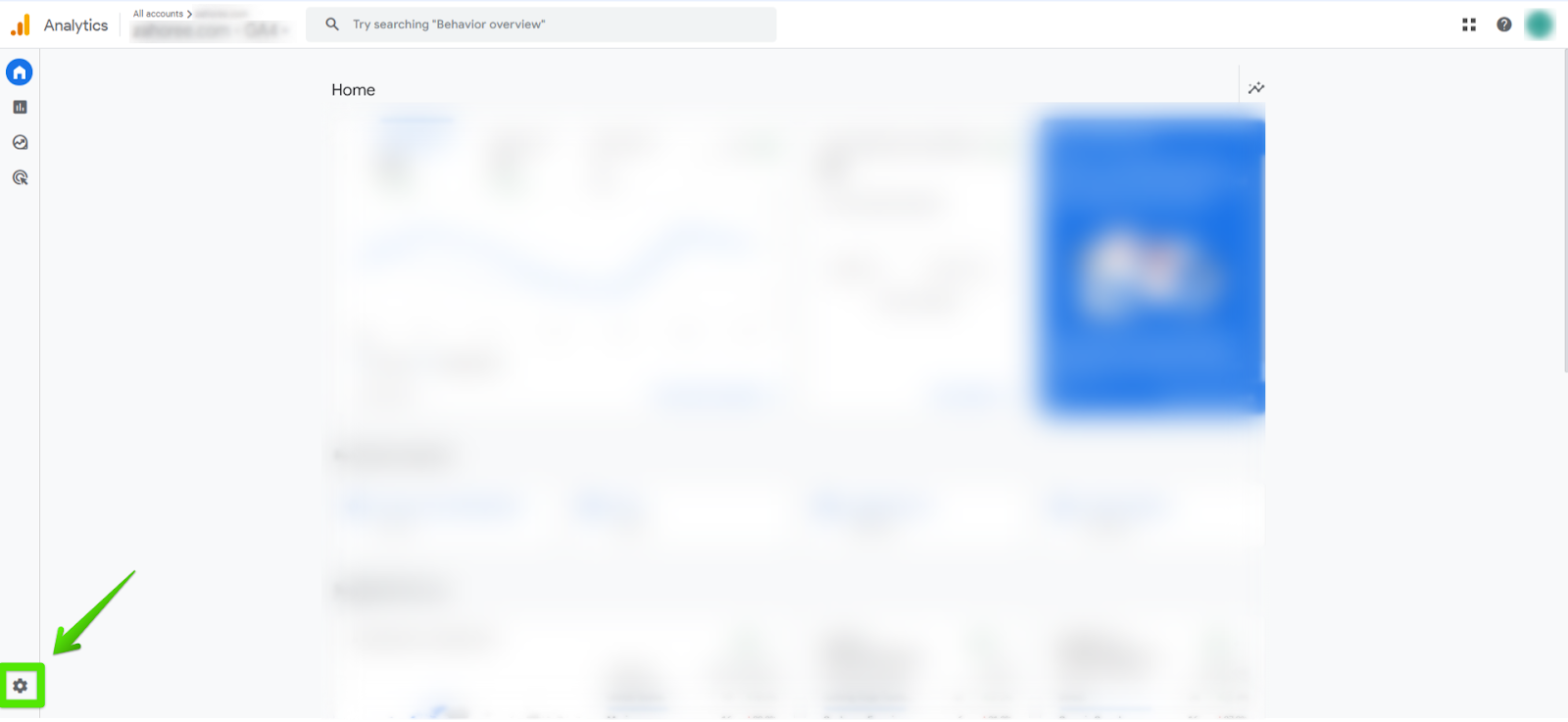
Navigate to the Admin section.
Source: Google Analytics 4 panel
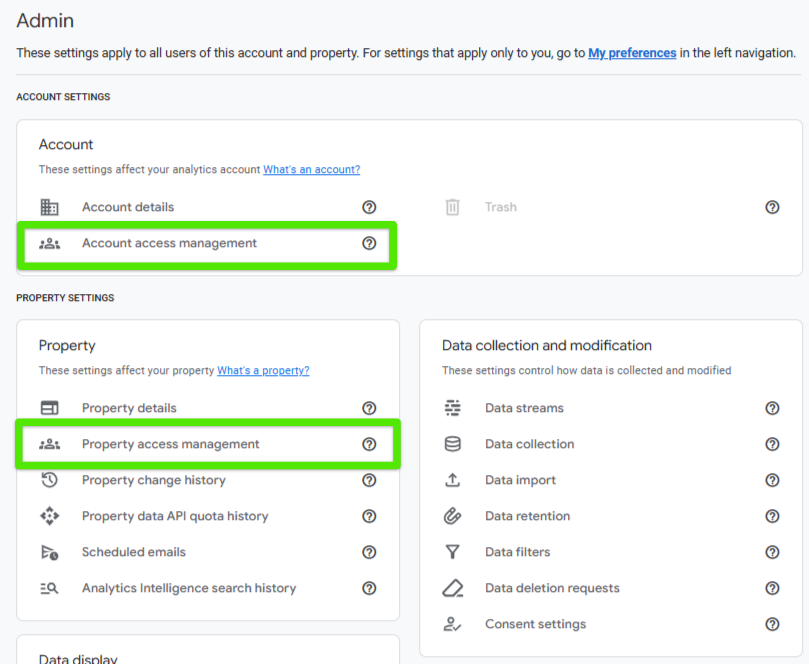
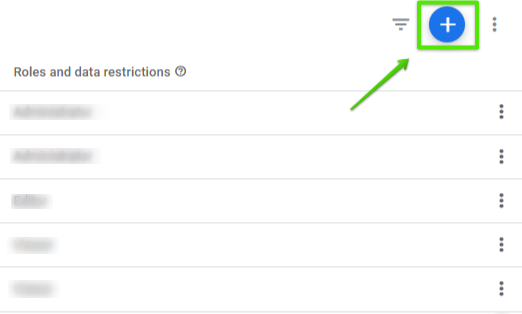
Click Account Access Management or Property Access Management (depending on what you want to grant), then select the blue plus icon (+).
Source: Google Analytics 4 panel
Source: Google Analytics 4 panel
Enter the email address of the person you want to grant access to. Ensure the user has a Google account.
Source: Google Analytics 4 panel
Select the appropriate permission level (e.g., Administrator, Editor).
Source: Google Analytics 4 panel
Click Add to save changes. The user will receive an email invitation to collaborate and can start using the tool immediately.
Source: Google Analytics 4 panel
Revoking Access to a Google Analytics 4 Account
If you want to restrict or completely revoke a user’s access, you can do so in a few simple steps:
Sign in to your Google Analytics 4 account.
Navigate to the Admin section, then select Account Access Management or Property Access Management.
In the displayed panel, find the user whose permissions you want to change. Click the edit icon (pencil) next to their name.
Source: Google Analytics 4 panel
Remove the user or change their access level:
To completely revoke access, click Remove User.
To restrict permissions, change the access level to Viewer or Read-Only.
Click Save to confirm changes.
Google Tag Manager
Account Access Levels in Google Tag Manager
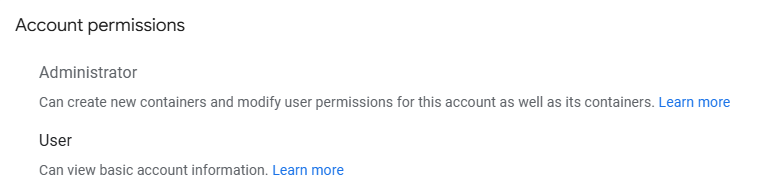
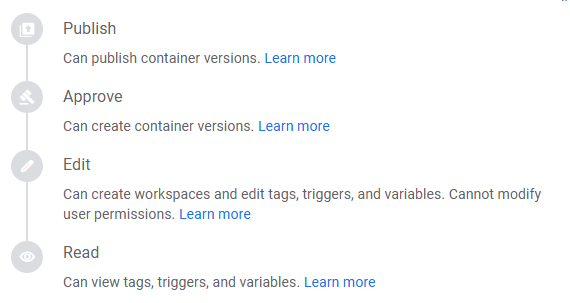
Google Tag Manager allows assigning different access levels to users, both at the account level and for individual containers. Here are the available options:
Account Access Levels:
Source: Google Tag Manager panel
Container Access Levels:
Source: Google Tag Manager panel
Granting Access to a Google Tag Manager Account
To grant access in GTM, you must have administrator rights. Here are the steps:
Sign in to Google Tag Manager.
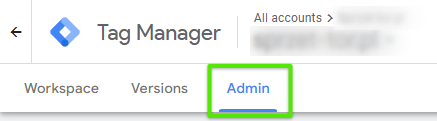
Navigate to the Admin section.
Source: Google Tag Manager panel
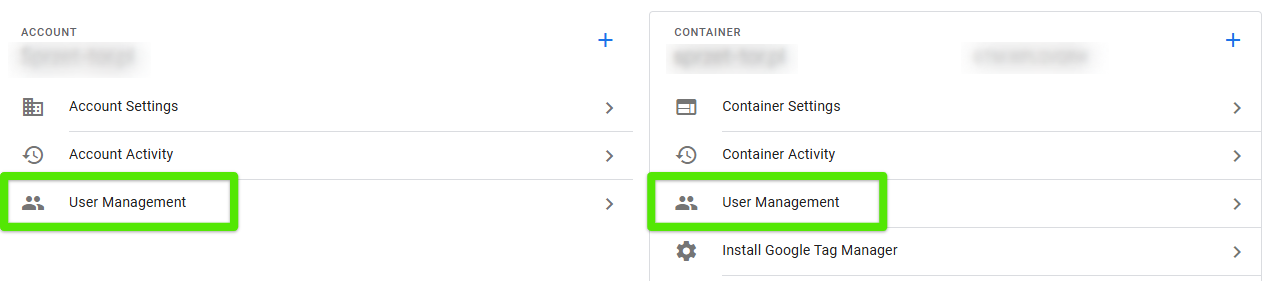
Select the account and container to which you want to grant access, then click User Management.
Source: Google Tag Manager panel
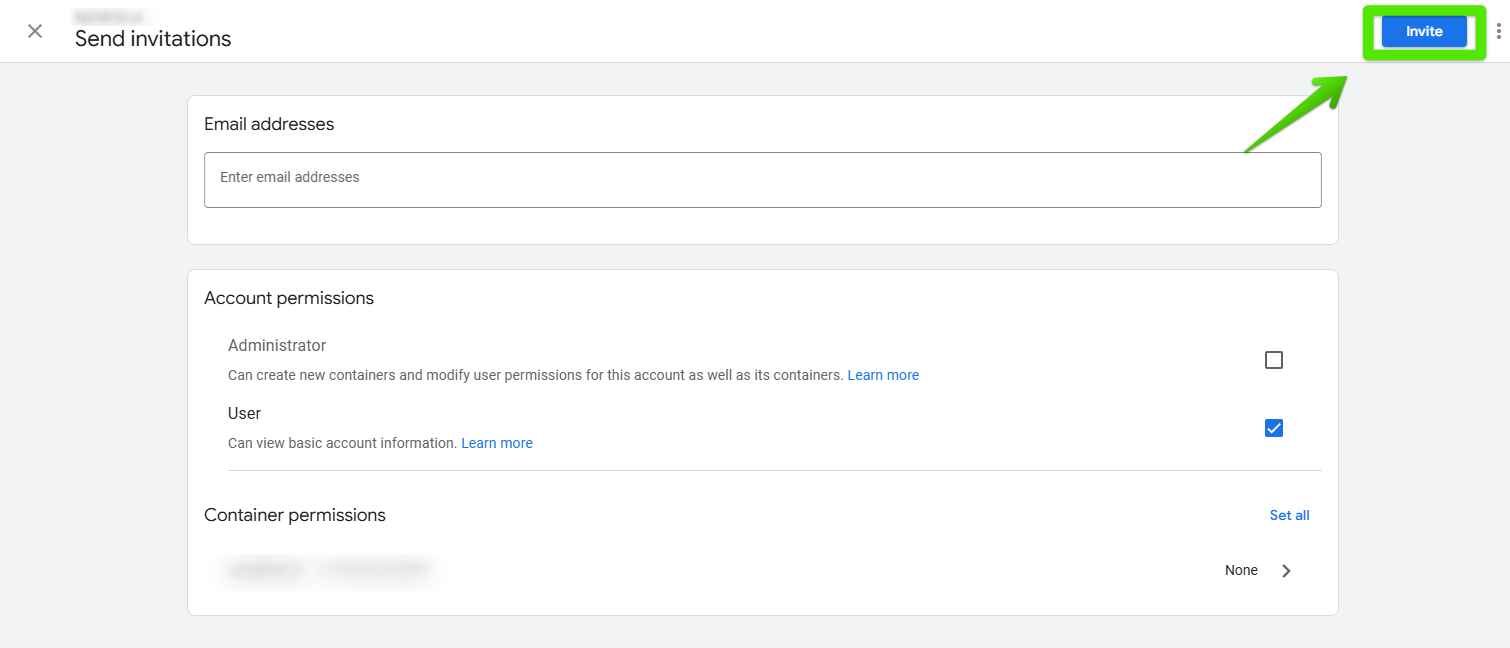
Click the blue plus button (+) and select Add Users, choosing the appropriate permission level. Once everything is set, click Invite.
Source: Google Tag Manager panel
Revoking Access to a Google Tag Manager Account
Revoking access in GTM is just as simple as granting it. Follow these steps:
Sign in to Google Tag Manager (you must have administrator rights to revoke access).
In the menu, click Admin. Select the account and container from which you want to remove the user.
Source: Google Tag Manager panel
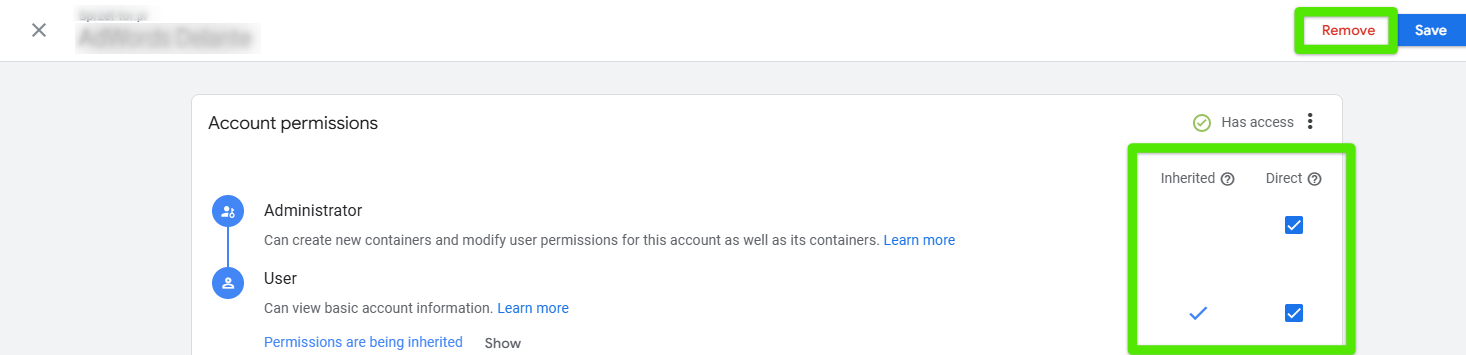
Go to User Management, select the appropriate email, then either remove the user or adjust their access.
Source: Google Tag Manager panel
Click Save to confirm changes.
Summary
Managing access to Google tools such as Google Ads, Merchant Center, Analytics, and Tag Manager is the foundation of secure and convenient collaboration. Deciding who has access and to what extent ensures smooth tool operation and data protection. Granting and revoking permissions is simple, and various access levels—from Administrator to Viewer—allow roles to be tailored to specific needs. This provides control over accounts and facilitates teamwork without unnecessary complications.
Graduate of Marketing and Communication at the Cracow University of Economics. He started working at Delante in 2023. Privately, he is interested in traveling and discovering new music, as well as enjoys watching a good thriller and a football game.
A graduate of the AGH University of Science and Technology and the University of Economics in Krakow. At Delante since the SEM internship in August 2023.
In her free time, she is an enthusiast of watching ski jumping and exploring the culture of the Pieniny and Upper Silesia regions.
A Management and Economics graduate. She started her adventure at Delante with an SEM internship in December 2021. She currently holds the position of SEM Specialist. Her special interest from the professional angle is Internet marketing, and she is no stranger to Google market changes. Privately, she enjoys traveling, sport, especially gym.
Graduate of Marketing and Communication at the Cracow University of Economics. He started working at Delante in 2023. Privately, he is interested in traveling and discovering new music, as well as enjoys watching a good thriller and a football game.
A graduate of the AGH University of Science and Technology and the University of Economics in Krakow. At Delante since the SEM internship in August 2023.
In her free time, she is an enthusiast of watching ski jumping and exploring the culture of the Pieniny and Upper Silesia regions.
A Management and Economics graduate. She started her adventure at Delante with an SEM internship in December 2021. She currently holds the position of SEM Specialist. Her special interest from the professional angle is Internet marketing, and she is no stranger to Google market changes. Privately, she enjoys traveling, sport, especially gym.


 d-tags




 (5 votes, average: 4.80 out of 5)
 Loading...