Abandoned Carts – How to Use Them in Remarketing? Abandoned Cart Remarketing List in Google Analytics: Step-by-Step How to Create an Abandoned Cart Remarketing Campaign in Google Ads
Remarketing campaigns are banner campaigns (with graphics) that let you show ads to people who have already interacted with your website—for example, they added a product to their cart but did not finish the transaction. If you’ve noticed that users of your e-shop often do not complete their transactions and their conversion path ends at the shopping cart stage, launching an abandoned cart remarketing campaign in Google Ads can be a great solution. These campaigns encourage those users to return to your site and complete the purchase. (You can read more about abandoned carts and remarketing in the article: Abandoned Carts: What are they? How do remarketing campaigns help deal with them?)
What You Need to Run a Remarketing Campaign
A Google Analytics account.
The Google Analytics Global Tag correctly installed on your website.
An Abandoned Cart Remarketing List created in Google Analytics.
A Google Ads account.
The Google Analytics account linked to Google Ads.
Abandoned Cart Remarketing List in Google Analytics: Step-by-Step
Before you can create an abandoned cart remarketing campaign, you need to create the right remarketing list in your Google Analytics account.
After logging into your Google Analytics 4 account, click “Admin” in the bottom left corner.
Source: Google Analytics 4 Dashboard
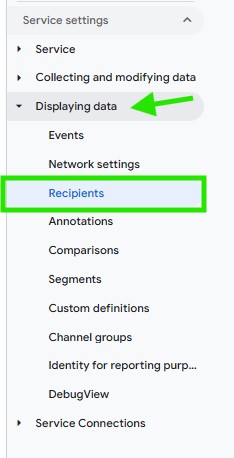
Next, in the Property settings section, select “Data display” from the list and go to “Audiences”.
Source: Google Analytics 4 Dashboard
In the next step, select “New audience”.
Source: Google Analytics 4 Dashboard
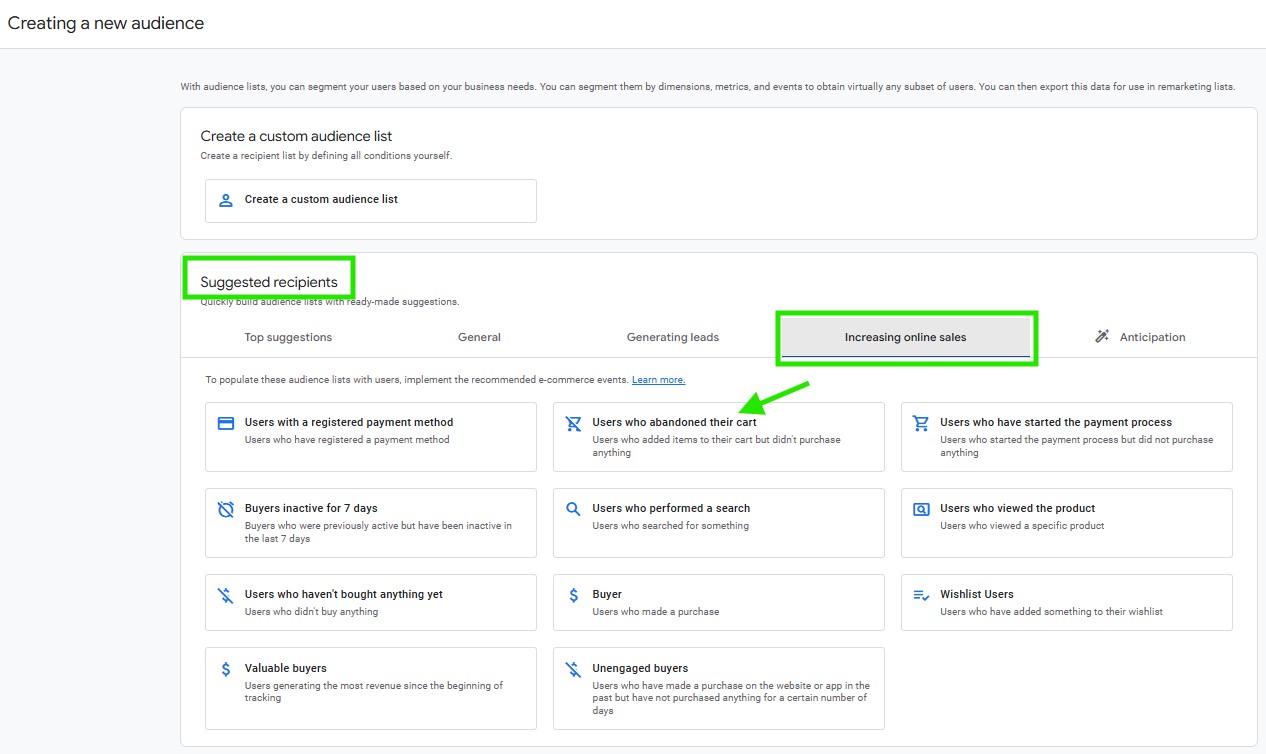
Choose the option “Users who abandoned their cart” from the “Suggested Audiences” list.
Source: Google Analytics 4 Dashboard
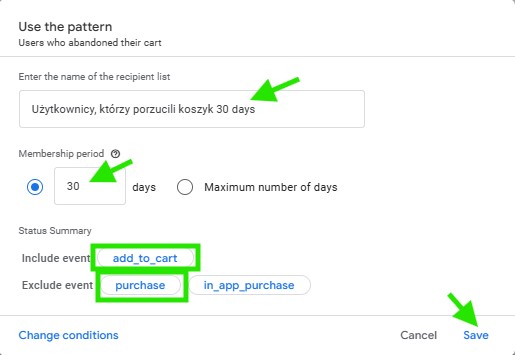
Enter a name for your audience group. The default is “Users who abandoned their cart.” You can safely add the number of days to specify the period from which the group will be aggregated. Remember, the maximum period is 540 days.
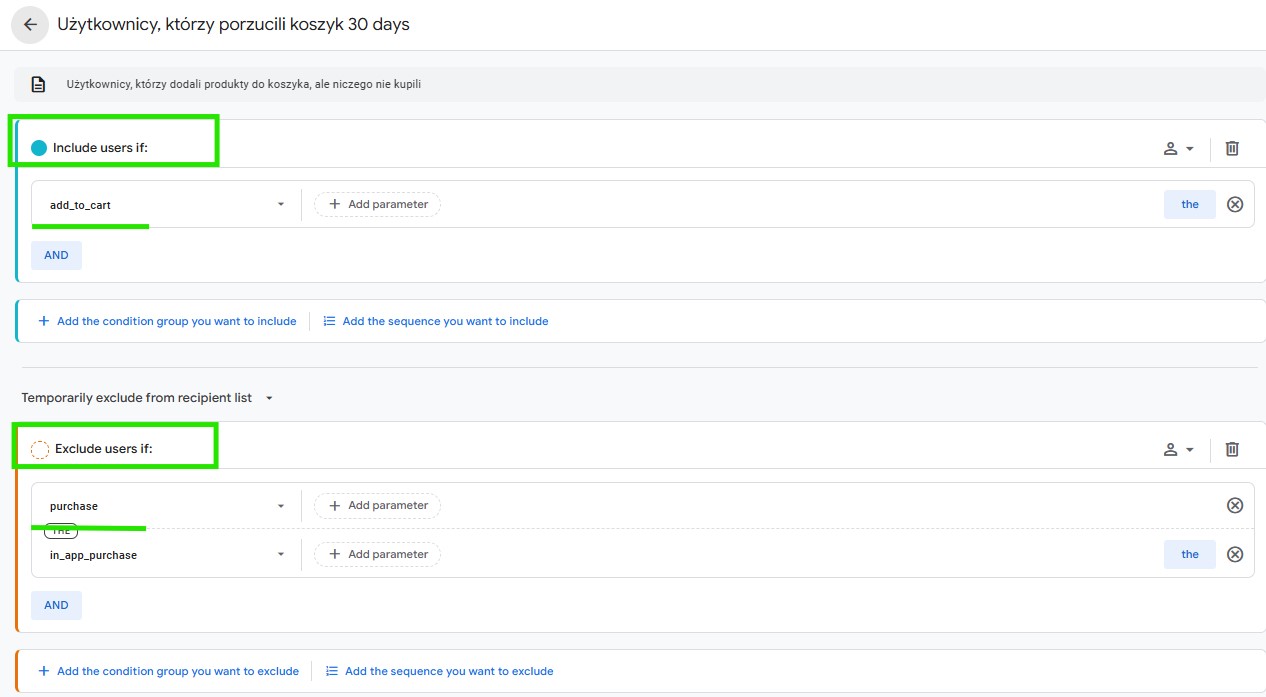
Since you only want to reach users who failed to complete the transaction at the shopping cart stage, remember to also exclude users who have already made a transaction and were redirected to the so-called “Thank You Page.”
Source: Google Analytics 4 Dashboard
The template in GA4 already has a scenario prepared for us, but if you want to make preferential changes, just click the “Edit conditions” button. In the next panel, you can manually operate variables and include or exclude certain users.
Source: Google Analytics 4 Dashboard
Additionally, you can specify how long a user should remain on the remarketing list. As mentioned, the maximum period is 540 days.
Finally, click Save, and your list should be imported into the Google Ads panel. You just need to have the GA4 service linked in your Data Manager.
Source: Google Ads Dashboard
Source: Google Ads Dashboard
How to Create an Abandoned Cart Remarketing Campaign in Google Ads
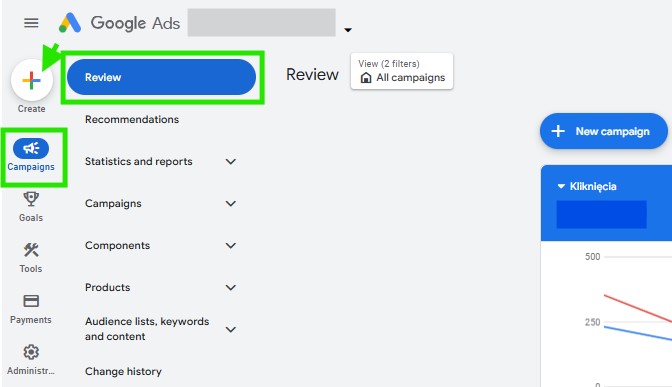
To create the remarketing campaign, click “All campaigns,” select “Campaigns,” and then the “+” sign.
Source: Google Ads Dashboard
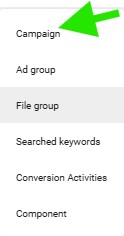
Click “Campaign.”
Source: Google Ads Dashboard
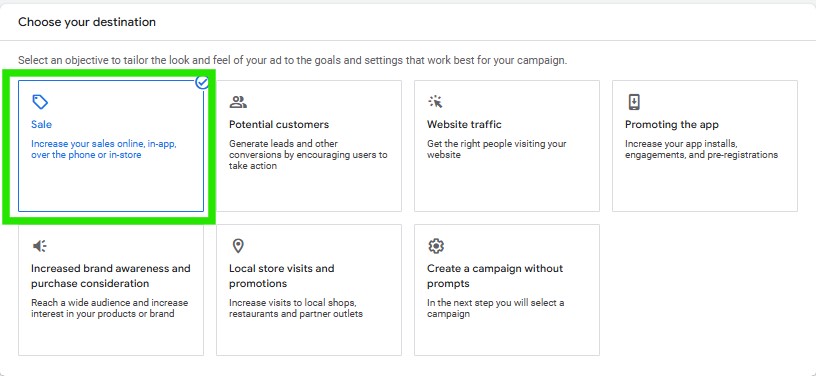
Go to the selection of the goal that the remarketing campaign is supposed to achieve—Sales.
Source: Google Ads Dashboard
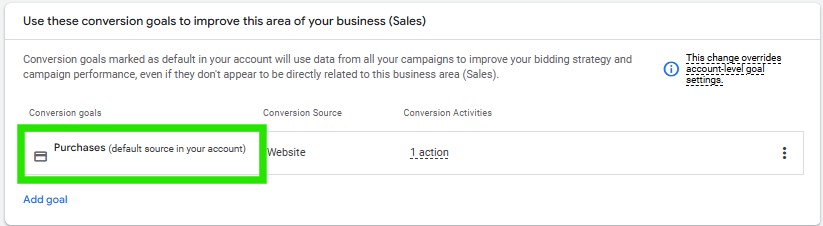
In the next step, keep the conversion set to “Purchases.”
Source: Google Ads Dashboard
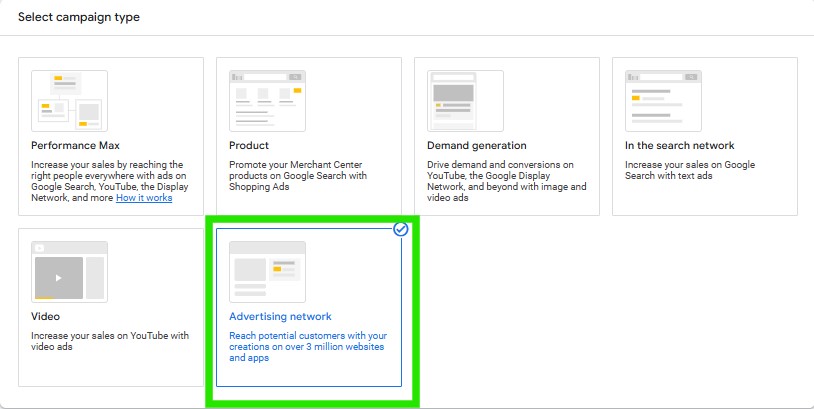
Below, you will see the campaign type selection. For our abandoned cart remarketing campaign, we choose the “Display Network” option.
Source: Google Ads Dashboard
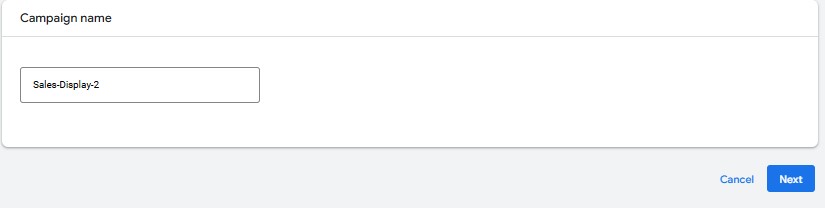
At the end of the first stage of campaign creation, give it a name and proceed.
Source: Google Ads Dashboard
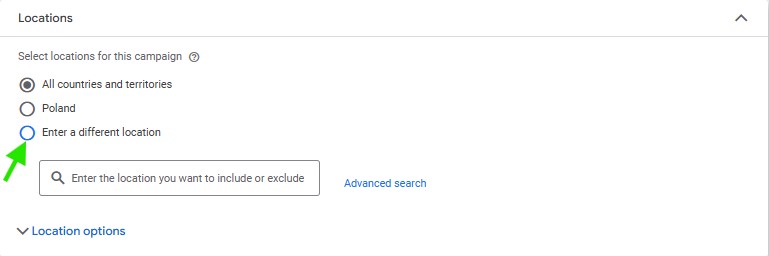
Set the location where your ads will be displayed. You can narrow down the location to a specific country, region, or city.
Source: Google Ads Dashboard
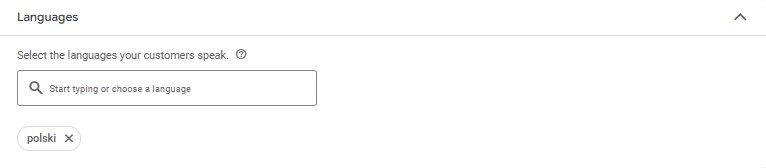
The next stage is language selection. You can set all languages or selected ones, e.g., Polish.
Source: Google Ads Dashboard
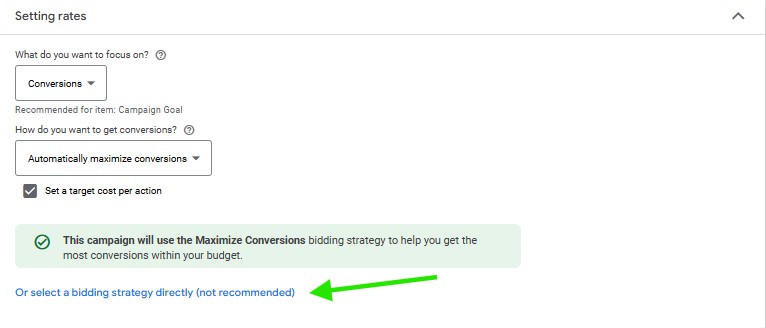
Skip to the section on choosing a bidding strategy. Different strategies are available for each type of Google Ads campaign. For a detailed explanation of each strategy, check out this blog post.
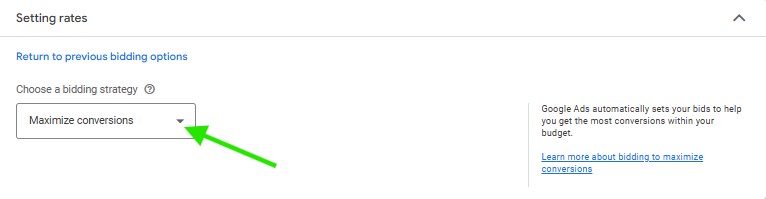
Click the “Select a bid strategy directly” option.
Source: Google Ads Dashboard
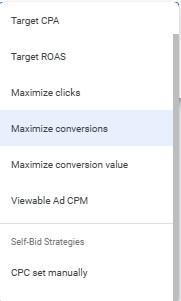
Then, click the arrow on the right to check the strategies available for a remarketing campaign.
Source: Google Ads Dashboard
Source: Google Ads Dashboard
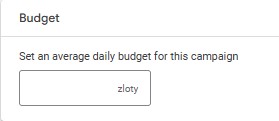
After selecting a specific strategy, set the daily budget for your campaign.
Source: Google Ads Dashboard
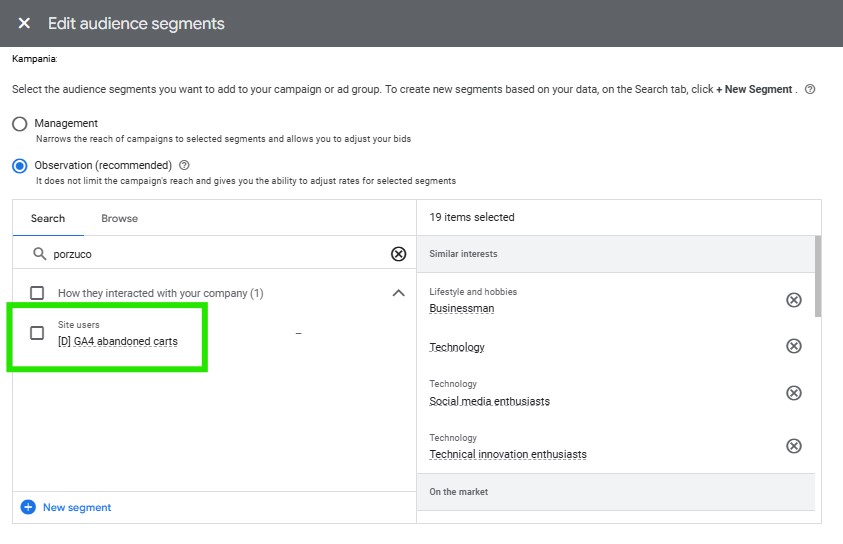
Go down to the “Targeting” and “Audience segments” section. Choose the “Browse” option. In the empty field below, type the name of the abandoned cart remarketing list you recently created in Google Analytics 4. Select the one you need.
Source: Google Ads Dashboard
After defining the audience, proceed to create the ad.
Then, add graphics and a logo.
After uploading the graphics, proceed to fill in the content.
Now It’s Your Turn!
You now know how to create an abandoned cart remarketing campaign. Make sure your brand and products constantly follow the potential customer while they “surf” the internet and encourage them to return to your store’s website. Do you feel you can’t handle this challenge alone, or would you like to do it with our SEM experts from Delante? Decide for yourself and write to us. We are at your disposal.
A Management and Economics graduate. She started her adventure at Delante with an SEM internship in December 2021. She currently holds the position of SEM Specialist. Her special interest from the professional angle is Internet marketing, and she is no stranger to Google market changes. Privately, she enjoys traveling, sport, especially gym.
A Management and Economics graduate. She started her adventure at Delante with an SEM internship in December 2021. She currently holds the position of SEM Specialist. Her special interest from the professional angle is Internet marketing, and she is no stranger to Google market changes. Privately, she enjoys traveling, sport, especially gym.


 d-tags



 Loading...