Learn how to effectively start your adventure with advertising using Meta Ads (formerly Facebook Ads). If you want to reach your target audience, increase your brand's reach, or promote your product range online, Meta Ads is the perfect tool to help you achieve your goals.
In this article, you’ll learn how to create a Facebook page – the first step in launching advertising efforts. We’ll also cover how to build a company portfolio and the key elements needed for managing successful ad campaigns. Additionally, you’ll learn how to easily grant access to your account to, for example, an advertising agency or freelancer, so they can effectively manage your campaigns.
How to set up a Facebook page (fanpage)?
Log in to your Facebook account,
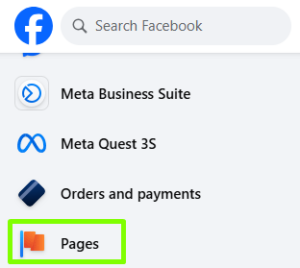
Go to the “Pages” section located in the menu on the left side:
Source: The Meta Ads panel
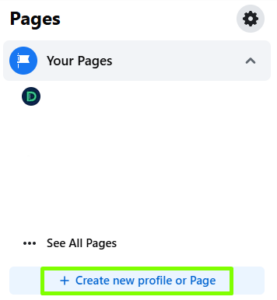
Click the “Create new profile or page” button. You’ll be redirected to a wizard that will guide you through the next steps:
Source: The Meta Ads panel
Enter basic information about your page:
page name – enter a name representing your company, brand, or initiative,
category – select the category that best describes your page profile (e.g., restaurant, online store, personal blog),
bio – write a short description of the subject or purpose of your page.
After entering the information, click “Create page”.
Add photos:
profile picture – most often it’s a company logo or other recognizable symbol,
cover photo – an image showing the nature of your business, promotions, or other relevant information.
Adding these elements is optional, but recommended if you want your page to look good and professional.
Customize the page. After creating it, you can:
add CTA (Call to Action) buttons, such as “Contact us”, “Buy now”, or “Book now”,
publish posts – news, offers, events, and other content that engages your audience,
complete additional information – opening hours, contact details, location, etc.
It’s time to publish the page.
Remember that updating your content and interacting with followers regularly is the key to the success of your Facebook page.
How to set up your business portfolio (Business Manager) on Facebook?
A Business Manager account allows you to manage all your business assets, such as Facebook pages, ad accounts, and pixels, in one place.
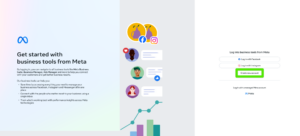
Click the “Create new account” button on the right side of the page:
Source: The Meta Ads panel
Log in to your personal Facebook account if you aren’t already logged in.
Fill out the registration form, providing:
company name,
your first and last name,
business email address.
Click “Next” and provide information about your company, such as:
address,
city,
postal code,
country,
phone number
Click “Submit” to complete the account creation process.
Sharing access to your Business Manager with an advertising agency
After creating an ad manager account, you can share your assets, such as your ad account or Facebook page, with an advertising agency so they can manage your campaigns.
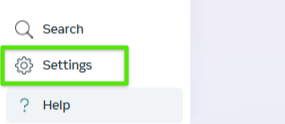
Select “Settings” by clicking the gear icon in the bottom left corner:
Source: The Meta Ads panel
In the left-hand menu, in the “Users” section, select “Partners,” and then on the right-hand side, click “Add” and select “Give a partner access to business assets.”
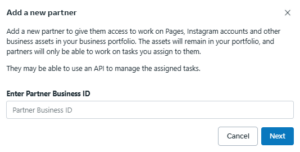
Enter the partner ID (the agency/freelancer’s business portfolio ID number), which you should receive from the agency.
Source: The Meta Ads panel
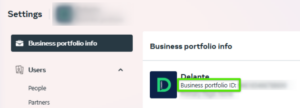
P.S. If you’re wondering where to find the business portfolio ID number you received from the agency/freelancer, it should be here:
Source: The Meta Ads panel
Click “Next,” and then select the assets you want to share with the agency, such as:
pages,
ad accounts,
pixels (data sets),
product catalogs.
Grant the appropriate permissions for each asset, usually at the full control level, so that the person can fully manage your campaigns,
Click “Save changes” to complete the process.
After completing these steps, the advertising agency (or freelancer) will have access to the assets you have indicated and will be able to effectively manage your Meta Ads advertising campaigns.
Remember that you can always manage access and permissions in your Business Manager settings by adding or removing partners and modifying their permissions.
How to create an ad account on Facebook?
After creating a Business Manager account, you can add an ad account:
Select “Settings” by clicking the gear icon in the bottom left corner:
Source: The Meta Ads panel
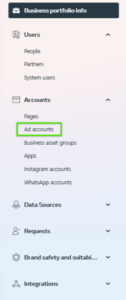
In the left-hand menu, click “Accounts,” and then select “Ad accounts”:
Source: The Meta Ads panel
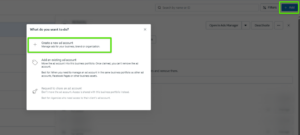
Click the “Add” button, and then select “Create a new ad account”:
Source: The Meta Ads panel
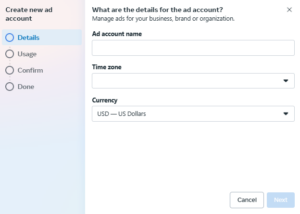
Enter the ad account details:
ad account name,
time zone,
currency.
Source: The Meta Ads panel
Note: The account currency can only be changed once every 60 days (if the current balance is zero),
Click “Next” and assign the ad account to the appropriate page or leave it unassigned,
Grant access to the ad account to the appropriate people in your company, specifying their roles and permissions,
Click “Save changes” to complete the ad account creation process.
Adding a payment method to your account
To start running ads, you need to add a payment method:
In business settings, go to the “Payments” section,
Click the “Add payment method” button,
Enter your credit/debit card details or select another available payment method,
Save the entered information.
After completing the above steps, your ad account will be ready to create and manage advertising campaigns in the Meta ecosystem.
How to create Facebook Pixel (Meta Pixel)?
The Meta Pixel (formerly Facebook Pixel) is an analytics tool that allows you to track user actions on your website after interacting with your ads on Meta platforms. With it, you can optimize advertising campaigns, create remarketing audiences, and analyze the effectiveness of your marketing efforts.
Select “Settings” by clicking the gear icon in the bottom left corner:
Source: The Meta Ads panel
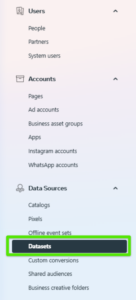
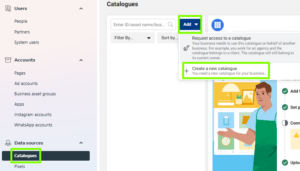
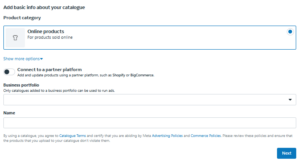
In the left-hand menu, in the “Data sources” section, click “Catalogs” > “Add” > “Create a new catalog”:
Source: Meta Ads
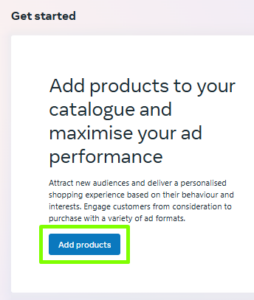
Click “Add products”:
Source: The Meta Ads panel
Name the catalog and assign an owner:
enter a catalog name that will uniquely identify it,
select the business account that will own the catalog:
Source: The Meta Ads panel
Make sure you have the appropriate permissions to manage the selected business account.
Complete the catalog creation:
After entering all the information, click “Create.” Your new catalog will now appear in Commerce Manager, ready for adding products and further configuration.
How to create a Facebook domain?
The final step is setting up a domain, a crucial element that establishes your official connection to the company. Once it’s verified, you’ll be able to fully benefit from Facebook’s advertising space.
Log in to your Meta Business Suite,
Click “Settings”:
Source: The Meta Ads panel
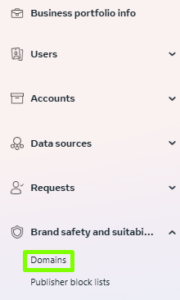
Click on the “Brand safety and suitability” section, then select “Domains” and click “Add” on the right side at the top:
Source: The Meta Ads panel
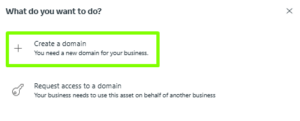
Click “Create a domain”:
Source: The Meta Ads panel
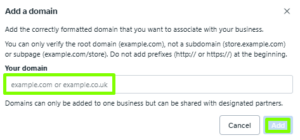
Add your domain address:
Source: The Meta Ads panel
Giving access to your company’s portfolio on Facebook
Adding partner access:
Log in to your Meta Business Suite,
Click “Settings”:
Source: The Meta Ads panel
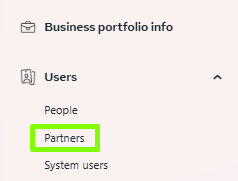
Go to the “Users” section, then select “Partners”:
Source: The Meta Ads panel
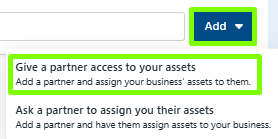
Give your partner (e.g., an agency) access to your assets. You’ll need your partner’s Business Manager ID for this:
Source: The Meta Ads panel
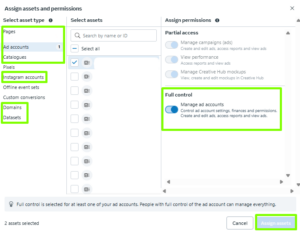
After entering your partner’s ID, click “Next”. Then, in one place, you can grant full control over the following assets: pages (fanpage), ad account, catalog (for e-commerce), Instagram account, Pixel (data set), and domain. You can find an example below:
A graduate of the AGH University of Science and Technology and the University of Economics in Krakow. At Delante since the SEM internship in August 2023.
In her free time, she is an enthusiast of watching ski jumping and exploring the culture of the Pieniny and Upper Silesia regions.
Graduate of Marketing and Communication at the Cracow University of Economics. He started working at Delante in 2023. Privately, he is interested in traveling and discovering new music, as well as enjoys watching a good thriller and a football game.
A Management and Economics graduate. She started her adventure at Delante with an SEM internship in December 2021. She currently holds the position of SEM Specialist. Her special interest from the professional angle is Internet marketing, and she is no stranger to Google market changes. Privately, she enjoys traveling, sport, especially gym.
A graduate of the AGH University of Science and Technology and the University of Economics in Krakow. At Delante since the SEM internship in August 2023.
In her free time, she is an enthusiast of watching ski jumping and exploring the culture of the Pieniny and Upper Silesia regions.
Graduate of Marketing and Communication at the Cracow University of Economics. He started working at Delante in 2023. Privately, he is interested in traveling and discovering new music, as well as enjoys watching a good thriller and a football game.
A Management and Economics graduate. She started her adventure at Delante with an SEM internship in December 2021. She currently holds the position of SEM Specialist. Her special interest from the professional angle is Internet marketing, and she is no stranger to Google market changes. Privately, she enjoys traveling, sport, especially gym.


 d-tags




 Loading...