How to Add a Website to Bing Webmaster Tools

7min.

Comments:0

09 July 2025

SEO
How to Add a Website to Bing Webmaster Toolsd-tags
Bing is the second largest search engine. While you might not pay as much attention to it as Google, you should at least set up Bing Webmaster Tools. With it, you can monitor performance, track keyword rankings, and resolve indexing issues. From creating a free online account, to verifying domain ownership, and gaining access to the tool’s console—there are several steps to follow, but they’re not difficult, and you can complete them quite easily. In our article, you’ll find a complete guide that will ensure your task is a success!

7min.

Comments:0

09 July 2025

How to Add a Website to Bing Webmaster Tools – Step-by-Step Guide

The Bing Webmaster Tools service is a free tool from Microsoft that allows you to add websites to the Bing bot, helping them appear in search results.

Adding your website to Bing Webmaster Tools is a practical step that provides valuable insights into how your site performs in search results on this search engine. Our simple guide is the quickest and most effective way to add your site to this tool, making it easier to monitor and optimize your online presence. How to do it? Let’s get started!

Before You Start – Create an Account

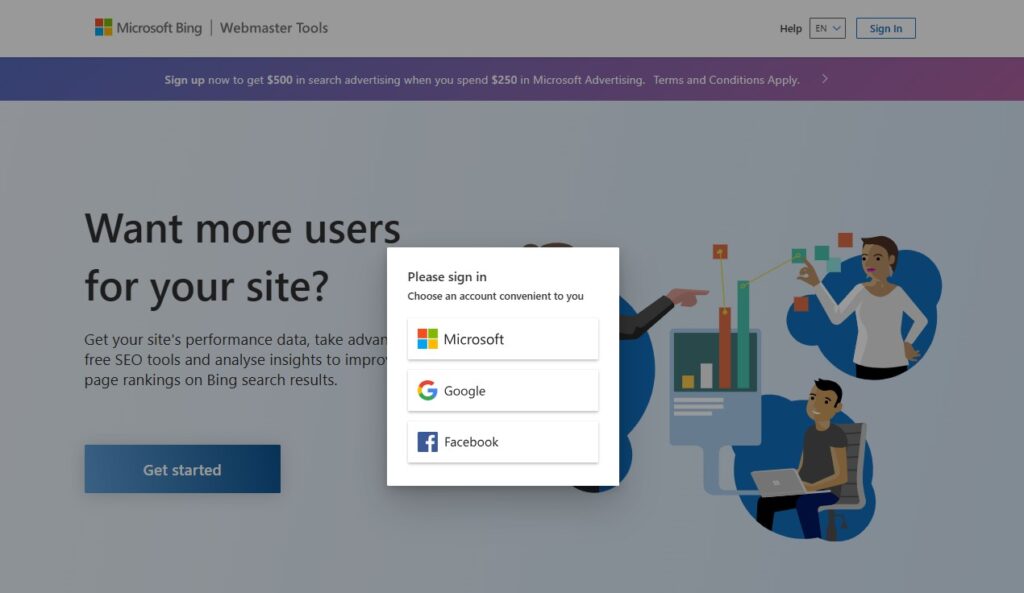
The process of adding a site starts with creating your account in Bing Webmaster Tools. It’s free. There are three options: you can sign in using your existing Microsoft, Google, or Facebook account.

Screenshot from Bing Webmaster Tools - How to Create an Account?


Alternatively, you can also create a new Microsoft account. To do this, simply click on the appropriate panel, and in the next step, select “Create one!”

Adding a Website to Bing Webmaster Tools

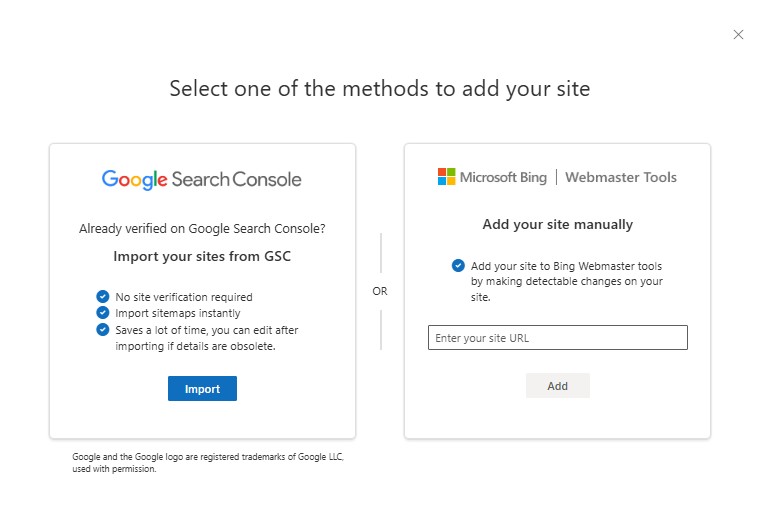
After creating your account, you can add various websites to your account. Next, you’ll need to confirm that you own the website. There are several methods for verifying ownership; choose the option that best suits your site’s characteristics and follow the on-screen instructions. Currently, there are two ways to do this:

Adding a Website to Bing Webmaster Tools  -screenshot from the Tool


  1. Import your sites from GSC: If you have a verified account in Google Search Console, you can import data directly into Bing. However, the tool will need permission to access information from your account. A list of verified domains from your GSC account will then appear. You can select the websites you want to add to Bing Webmaster Tools. To do this, simply click “Import.” Once the process is completed successfully, the selected domains will be automatically added and verified.
  2. Add your site manually: In this case, you need to manually enter the URL in the input field and click “Add.” You will also need to manually verify your domain, which we will explain in the next step.
If Bing Webmaster Tools successfully verifies your website, you’ll see a green checkmark and a confirmation message indicating that your domain has been added. If you see a red cross, focus on the error message to identify the issue with the site verification. Resolve the issue and try again later. If needed, you can also remove the added website, but if you decide to add it again, it will require re-verification.

Verification Methods

To successfully complete adding a new website to your account, you must confirm that you own the site. There are several methods for doing this:

  • Automatic DNS verification;
  • Verification via XML file
  • Verification via HTML Meta Tag;
  • Adding a CNAME in DNS.

Automatic DNS Verification

Bing Webmaster Tools supports the Domain Connect standard. This allows it to automatically detect the DNS provider and take over the task of adding the CNAME. Your role is limited to logging into your DNS account at the right moment. However, keep in mind that the Domain Connect service must also be implemented by your DNS provider. Therefore, not everyone will be able to verify the site this way.

If your website does not support Domain Connect, you will only see the remaining three options in the panel.

Adding a CNAME Record to DNS

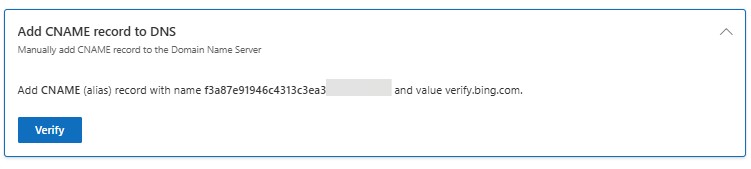
To do this, you need access to your website’s hosting account. After logging in, you should edit the CNAME record by entering the verification code (a string of numbers and letters). This code is generated in Bing Webmaster Tools.

Screenshot showing how to verify Bing Webmaster Tools using CNAME Record to DNS


Verification via HTML Meta Tag

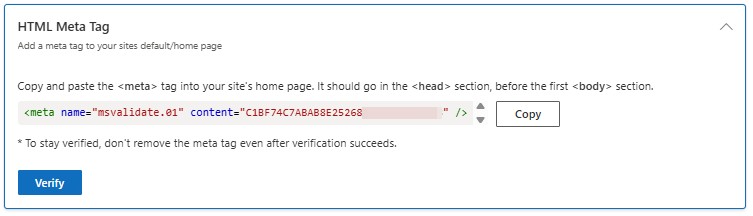
Copy the <meta /> tag with the custom ownership verification code to your clipboard. Then, open the default page of the registered website in your code editor and paste the code at the end of the <head> section. Make sure that the <body> tag comes after the <head> section. Finally, save the updated file of the default page containing the new <meta /> tag and upload it to your website.

Bing Webmaster Tools Verification via HTML Meta Tag


Verification via XML File

Click and save the BingSiteAuth.xml file to your computer. It contains the custom ownership verification code. Then, upload this file to the root directory of the registered website.

Verification Bing Webmaster Tools via XML File

Submit Sitemap in Bing Webmaster Tools

To fully configure Bing Webmaster Tools, you need to submit your sitemaps. This allows for regular crawling and reindexing. If you previously imported your website to Bing Webmaster Tools via Google Search Console, there’s a chance that your sitemaps were also imported by Microsoft.

You can verify this by going to the panel on the left side and selecting: Sitemaps > Sitemap Details. Here, you’ll find all the submitted files.

If they are not listed, you will need to do it manually. Click the “Submit Sitemap” button located at the top right corner.

Screenshot how to submit sitemap in Bing Webmaster Tools

Take Action with SEO and AISO!

All Set? Bing Webmaster Tools has everything you need. While Microsoft’s search engine may not gather the same results as Google, it’s still worth your attention. Bing Webmaster Tools offers nearly everything that Google Search Console provides. Although you might not use it as frequently, it should definitely be part of your overall SEO strategy.

Read our Bing SEO Guide and learn why, in 2025, when AISO (AI Search Optimization) is becoming so important, we shouldn’t ignore this search engine.

Alternative Methods for Adding a Website to Bing Webmaster Tools

There are also alternative methods for adding a website to Microsoft’s tool. This can be done in WordPress through various plugins. We will discuss each of these methods in detail below.

The verification process through the selected plugins is very similar to manual configuration. You need to add your site manually and then choose verification via the HTML meta tag. What’s next? We’ll explain right away.

Adding via Yoast SEO

Verification via the Yoast SEO plugin is very simple. Log in to your WordPress dashboard. In the left navigation bar, find Yoast SEO, and then select “General.” In the left bar, you will find the “Site Connections” tab. And there here you have Bing verification:

Bing Webmaster Tools Verification via Yoast SEO

Paste the code from Bing Webmaster Tools, save the changes, and return to the tool. Click “Verify” and you’re done!

Adding via All In One SEO Pack

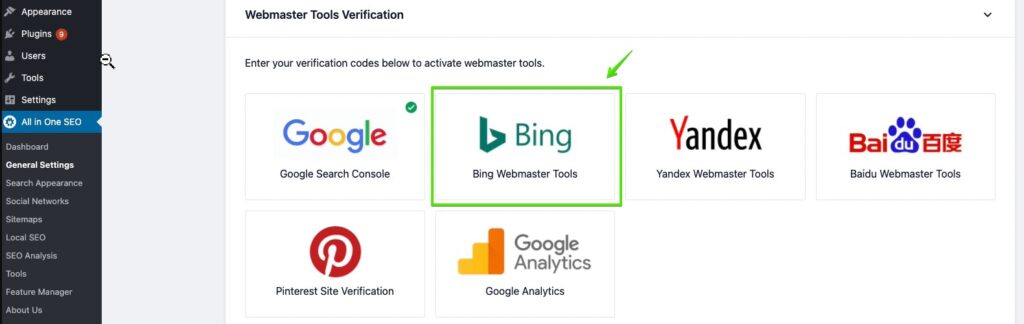
After copying the HTML meta tag, open your CMS panel and go to the “General Settings” of the All In One SEO plugin. There, you will find the “Webmaster Tools Verification” option. And there you have Bing Webmaster Tools:

Bing Webmaster Tools - veryfication via All in SEO Pack Plugin

Enter the verification code. Don’t forget to click “Save Changes.” Return to Bing Webmaster Tools and confirm the action by clicking “Verify.” You should receive a message confirming that everything was successful.

Adding via Rank Math

Go to your website’s panel, then click on the menu on the left: Rank Math SEO > General Settings > Webmaster Tools. Enter the code and save the changes. In Bing Webmaster Tools, verify the action.

Bing Webmaster Tools verification in Rank Math SEO Plugin
newsletter-icon

Sign up for our newsletter!

Discover the latest tips, case studies, and strategies from digital-marketing experts!

Delante – Best technical SEO agency

Using Bing Webmaster Tools – What Are Your Options?

The account in Bing Webmaster Tools is divided into various sections, reports, and tools. Through the dashboard, you can quickly review your site’s performance as well as technical issues. However, the true value of the Microsoft service lies in the deeper reports and tools you can use in your work on optimization and site ranking. Why is it worth using this alternative to Google?

Search Performance

One of the most important reports you can find in Bing is the Search Performance section.

Search Performance in Bing Webmaster Tools

Here, you’ll get an overview of clicks, impressions, and other key metrics. You can check results over time or switch between keywords or pages. The difference between Bing Webmaster Tools and Google Search Console is that in Microsoft’s tool, you don’t have the ability to segment results, such as by device types.

URL Inspection

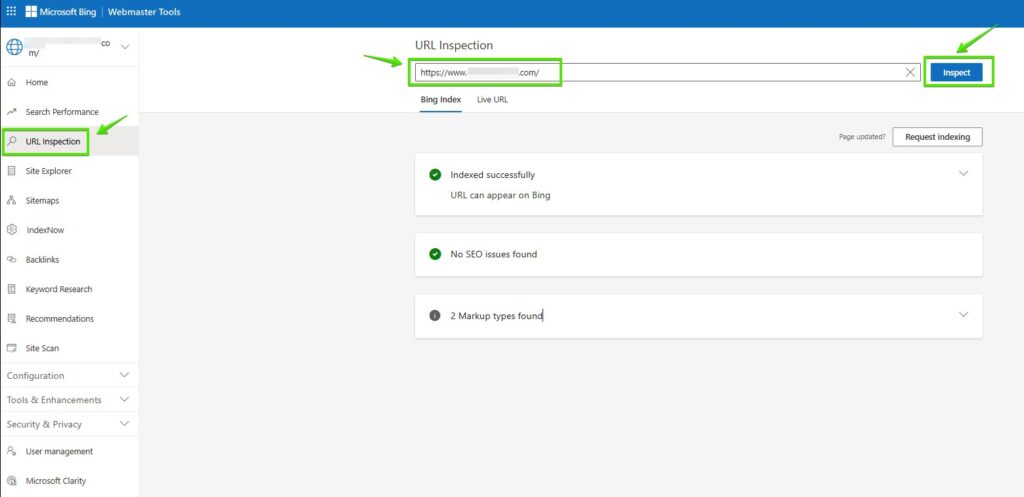
In Bing Webmaster Tools, you can also inspect URLs. You can switch between the “Bing Index” and “Live URL” options in Bing’s view. This report can be used to diagnose issues with search, indexing, or content.

URL inspection in bing webmaster tools

You should also check IndexNow option.

Site Explorer

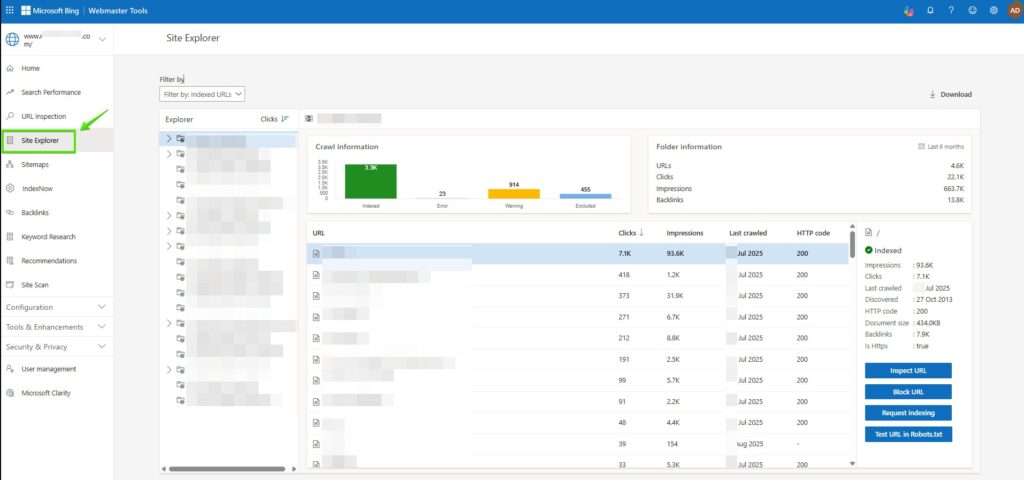
This is a unique report in Bing. In Bing Webmaster Tools, you can browse and navigate your website as it appears and is understood by the search engine.

Site Explorer in Bing Webmaster Tools

If your website is well-organized and has a good structure, the report provides an excellent overview. In addition to information about individual URLs, it also includes a summary of statistics for each folder. This allows you to browse the site in a “tree” format.

Keyword Research

The report in Bing Webmaster Tools is not as comprehensive as the Keyword Planner in Google Ads, but it can still serve as a useful tool for insights into user behavior. Microsoft’s service provides information on keyword trends across different countries and languages. You can filter the results by device or search type.

Backlink Analysis

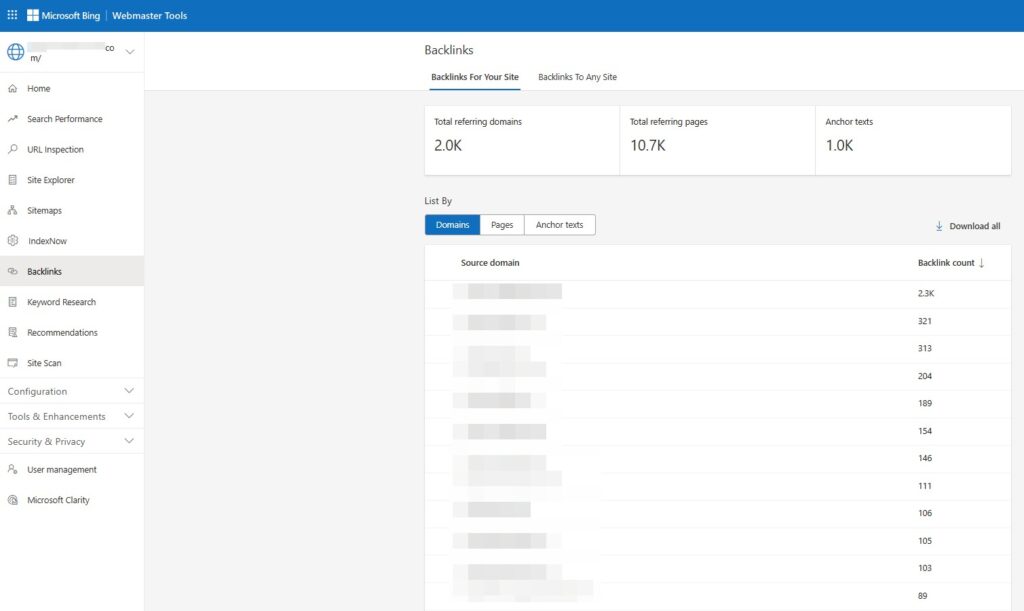
The backlink report in Bing Webmaster Tools may seem unimpressive at first glance, as it presents a simple list of sites linking to your website, ordered by the total number of links. However, it’s important to focus on key details, such as the number of links from individual sites, which can indicate their value. Analyzing individual links from reputable sources can be more useful than a bulk of links from less relevant pages.

The report also allows you to check specific pages and the most commonly used anchor texts. Particularly valuable is comparing your backlink profile with competitors, which helps identify common areas and potential opportunities. Despite its limitations, the backlink report provides a valuable tool for analyzing and improving your link building strategy.

Backlinks in Bing Webmaster Tools

Crawl Control

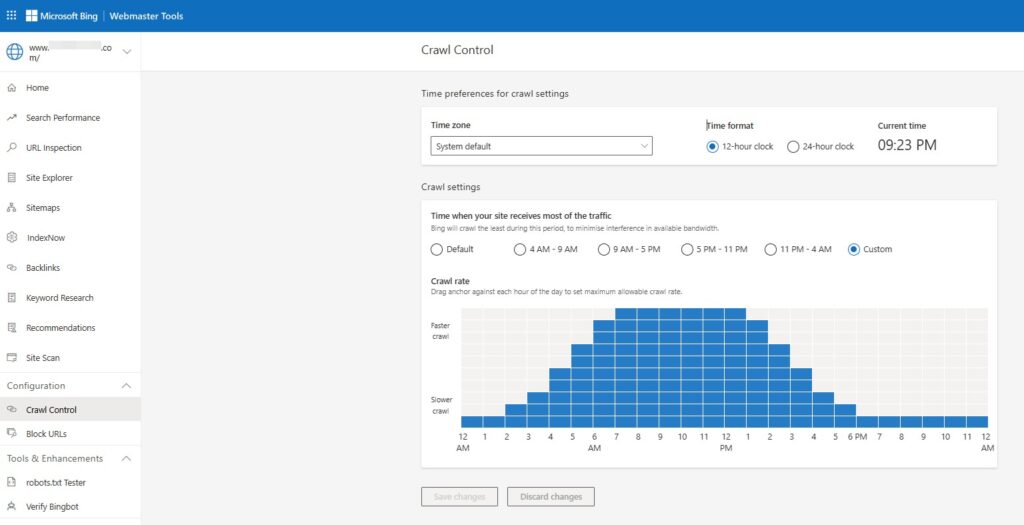
In the Crawl Control section of Bing Webmaster Tools, you can manage how Bingbot interacts with your website. This feature allows you to set crawl frequency and control which pages or sections of your website Bingbot should prioritize or avoid. You can adjust the crawl rate to prevent excessive load on your server and ensure a more efficient indexing process. Additionally, you can set crawl restrictions, such as blocking specific URLs or directories from being crawled, to fine-tune how your site is indexed by Bing. This gives you greater control over the crawling process and helps ensure that Bingbot focuses on the most important content.

Crawl Control in Bing Webmaster Tools

Summary – Why Is It Worth It?

Adding your site to Bing Webmaster Tools is a strategic step for any website owner who wants to optimize their online presence. It’s worth doing to:

  • Monitor and improve your visibility in Bing search results;
  • Effectively manage backlinks;
  • Regularly submit sitemaps;
  • Compare with competitors.

Want to learn more about configuring Bing Webmaster Tools or boosting your SEO performance? Contact us and take care of your website.

Author
Marcin Polak - Junior SEO Specialist
Author
Marcin Polak

Junior SEO Specialist

Junior SEO Specialist with experience in copywriting. He has been with Delante since 2023, where he combines creative writing with an analytical approach to SEO. A graduate of the Jagiellonian University (Journalism and Social Communication, Sports Management). Outside of work, he is an active fan of sports, cooking, and TV series.