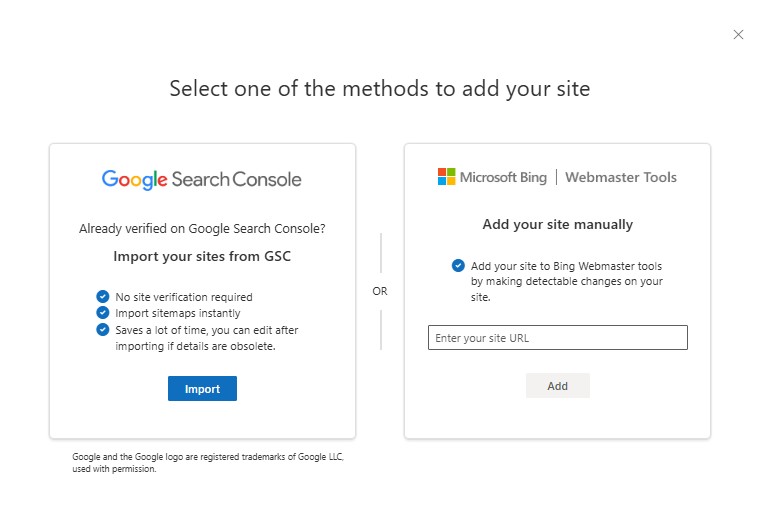
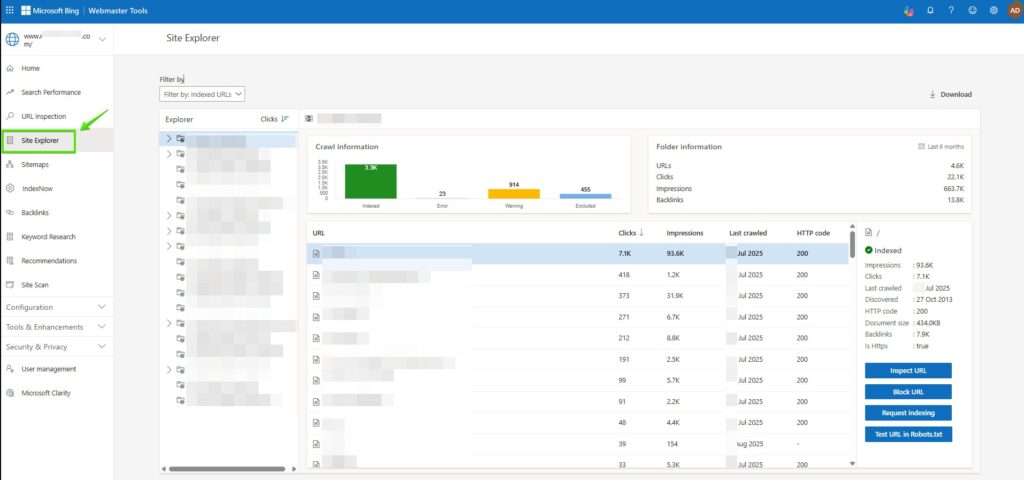
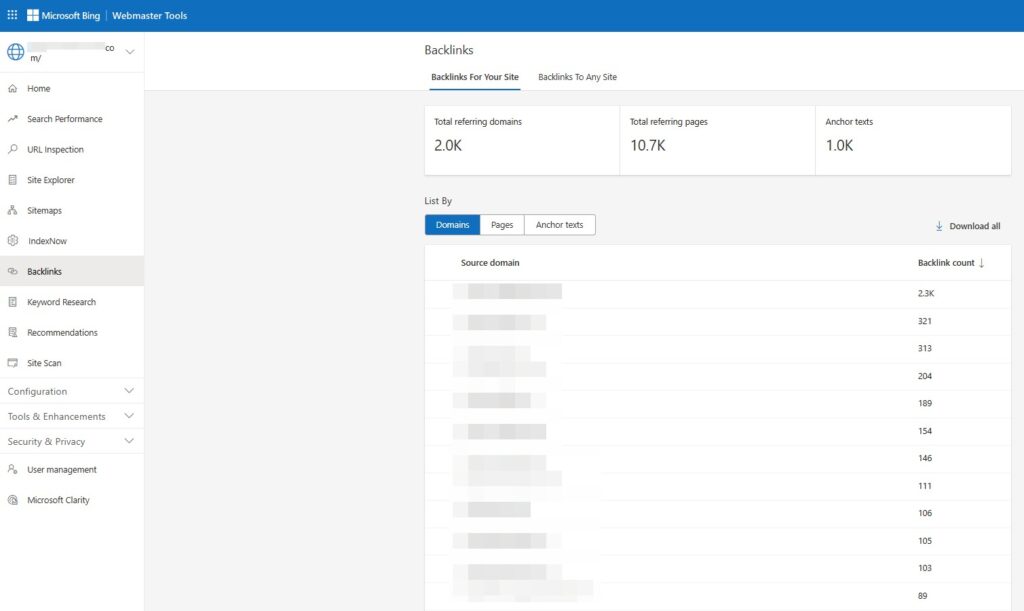
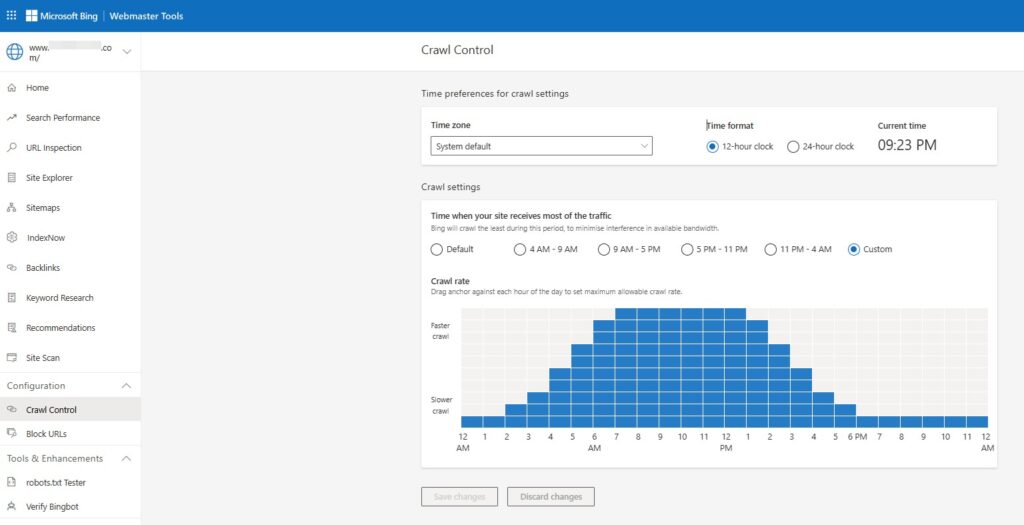
To successfully complete adding a new website to your account, you must confirm that you own the site. There are several methods for doing this:
- Automatic DNS verification;
- Verification via XML file
- Verification via HTML Meta Tag;
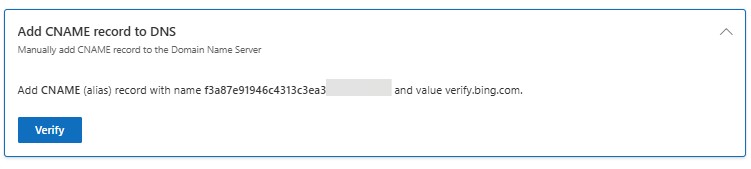
- Adding a CNAME in DNS.
Automatic DNS Verification
Bing Webmaster Tools supports the Domain Connect standard. This allows it to automatically detect the DNS provider and take over the task of adding the CNAME. Your role is limited to logging into your DNS account at the right moment. However, keep in mind that the Domain Connect service must also be implemented by your DNS provider. Therefore, not everyone will be able to verify the site this way.
If your website does not support Domain Connect, you will only see the remaining three options in the panel.
Adding a CNAME Record to DNS
To do this, you need access to your website’s hosting account. After logging in, you should edit the CNAME record by entering the verification code (a string of numbers and letters). This code is generated in Bing Webmaster Tools.
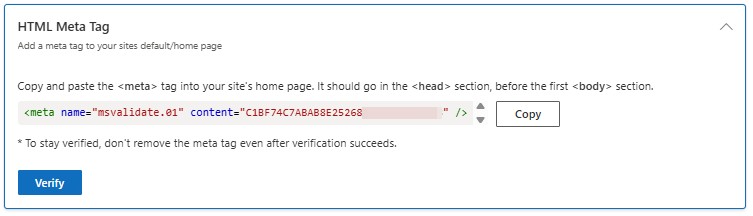
Verification via HTML Meta Tag
Copy the <meta /> tag with the custom ownership verification code to your clipboard. Then, open the default page of the registered website in your code editor and paste the code at the end of the <head> section. Make sure that the <body> tag comes after the <head> section. Finally, save the updated file of the default page containing the new <meta /> tag and upload it to your website.
Verification via XML File
Click and save the BingSiteAuth.xml file to your computer. It contains the custom ownership verification code. Then, upload this file to the root directory of the registered website.